
Trim an MOV clip to MP4 on a Mac
Keep seconds 3–8 of the sample and export a five-second MP4 clip.
Before you start
Install MP4Flow and confirm that FFmpeg and ffprobe are ready under “Help → Check Dependencies…”. The synthetic sample below is 12 seconds long at 640 × 360.
Open Trim
Add a fresh copy of Patterns.mov to the queue. Click the scissors icon (Trim) on its row.
Choose the range to keep
Under Keep range, set Start to 00:00:03.000 and End to 00:00:08.000. Check that Kept Duration reads 00:00:05.000, then click Confirm Trim.
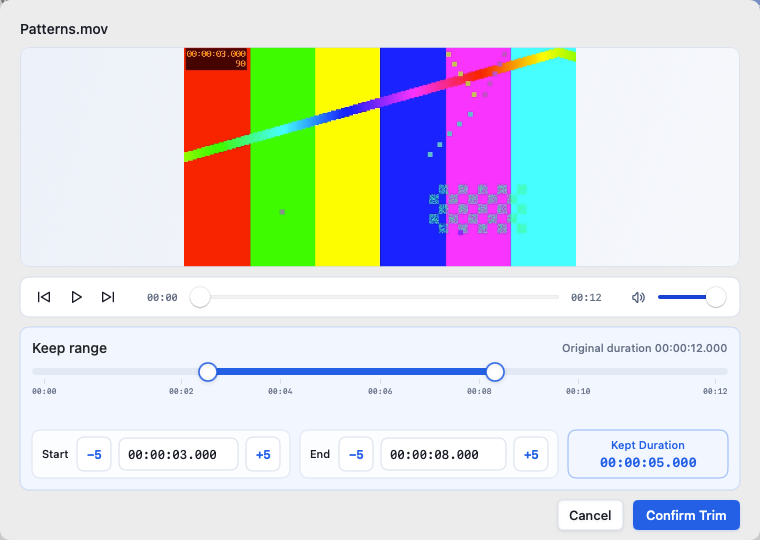
The kept range starts at 00:00:03.000 and ends at 00:00:08.000. View full-size image Export the clip
Keep Smart Convert and click Start. When it finishes, use Open Folder on the completed row.
Check the result
Play Patterns-trim-000003-000008.mp4 from start to finish. It should run for about 5 seconds and contain only the selected segment. The input MOV stays in place.