Smart Convert
Convert one video or a whole batch. Copy compatible video without re-encoding; use hardware acceleration when available.
 MP4Flow
FREE VIDEO CONVERTER FOR MAC
Free, open source and local.
No login, no uploads, no complex settings.
MOV, MKV, AVI and WMV to MP4
macOS 13+ · Apple silicon & Intel
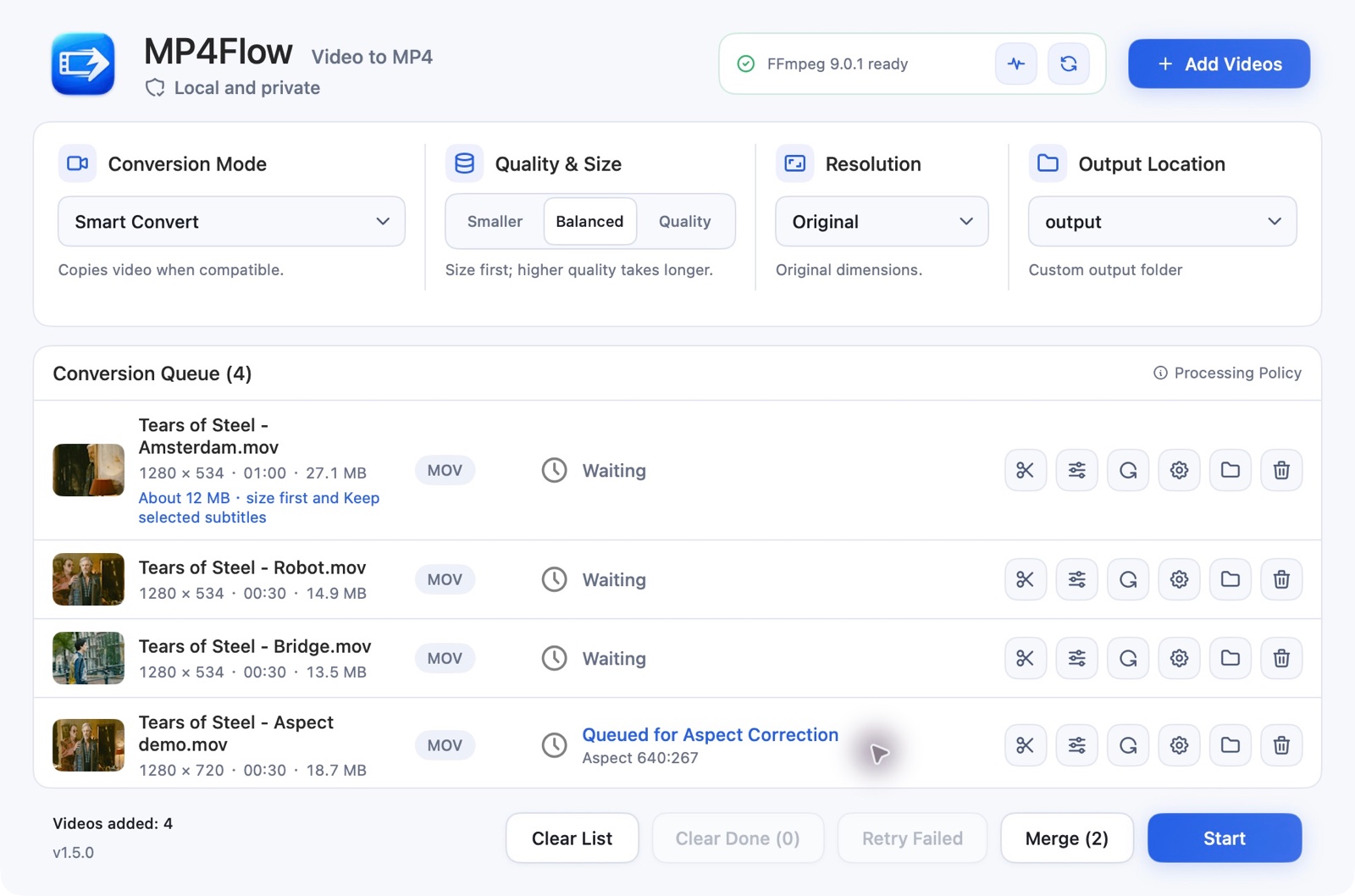
Convert one video or a whole batch. Copy compatible video without re-encoding; use hardware acceleration when available.
Join unedited clips in queue order. Merge directly when compatible, or use Compatible Merge to match formats.
Keep your queue and settings between launches. Restart unfinished tasks when you’re ready.
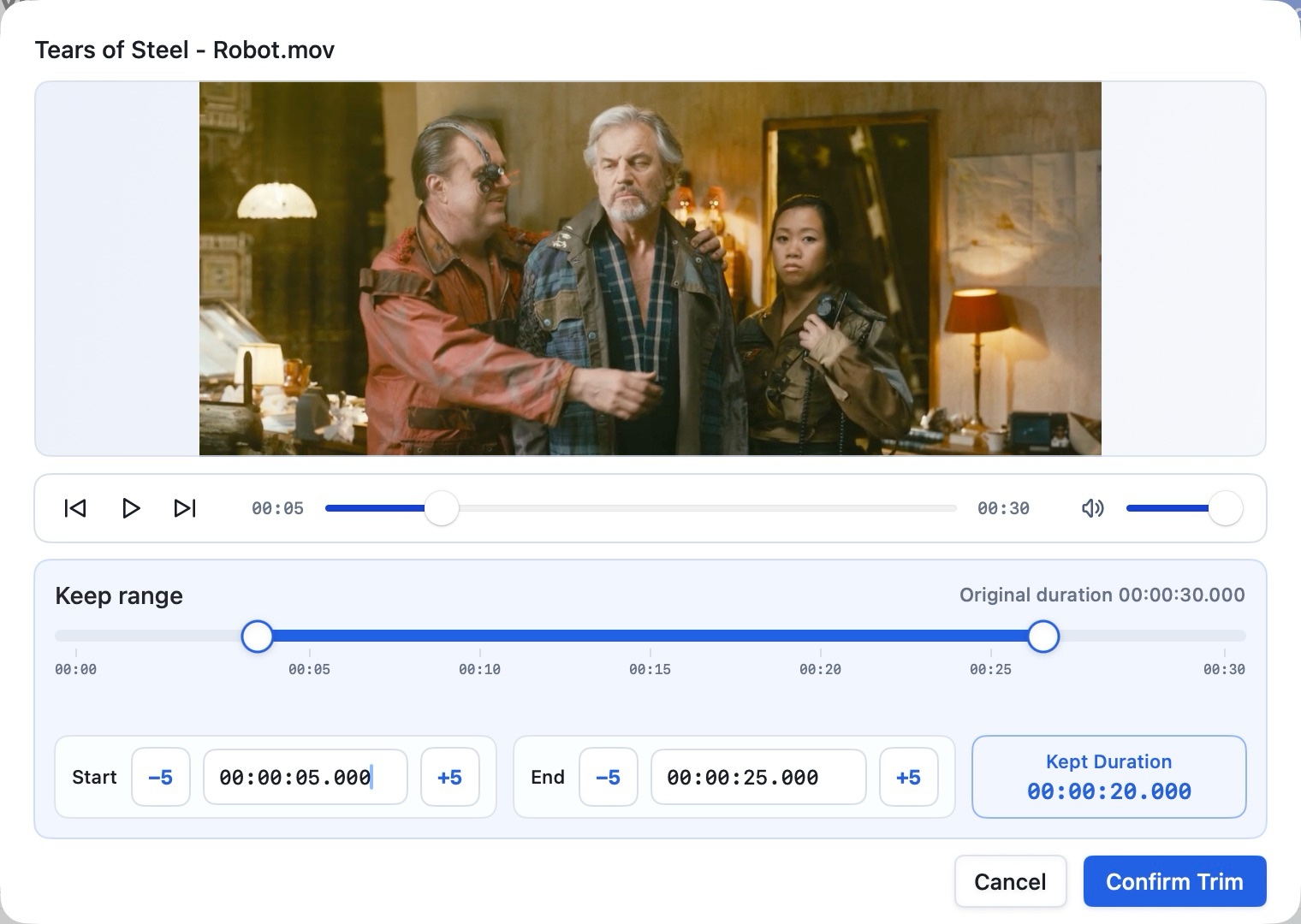
Drag the range or enter exact start and end times. Preview the part you want to keep.
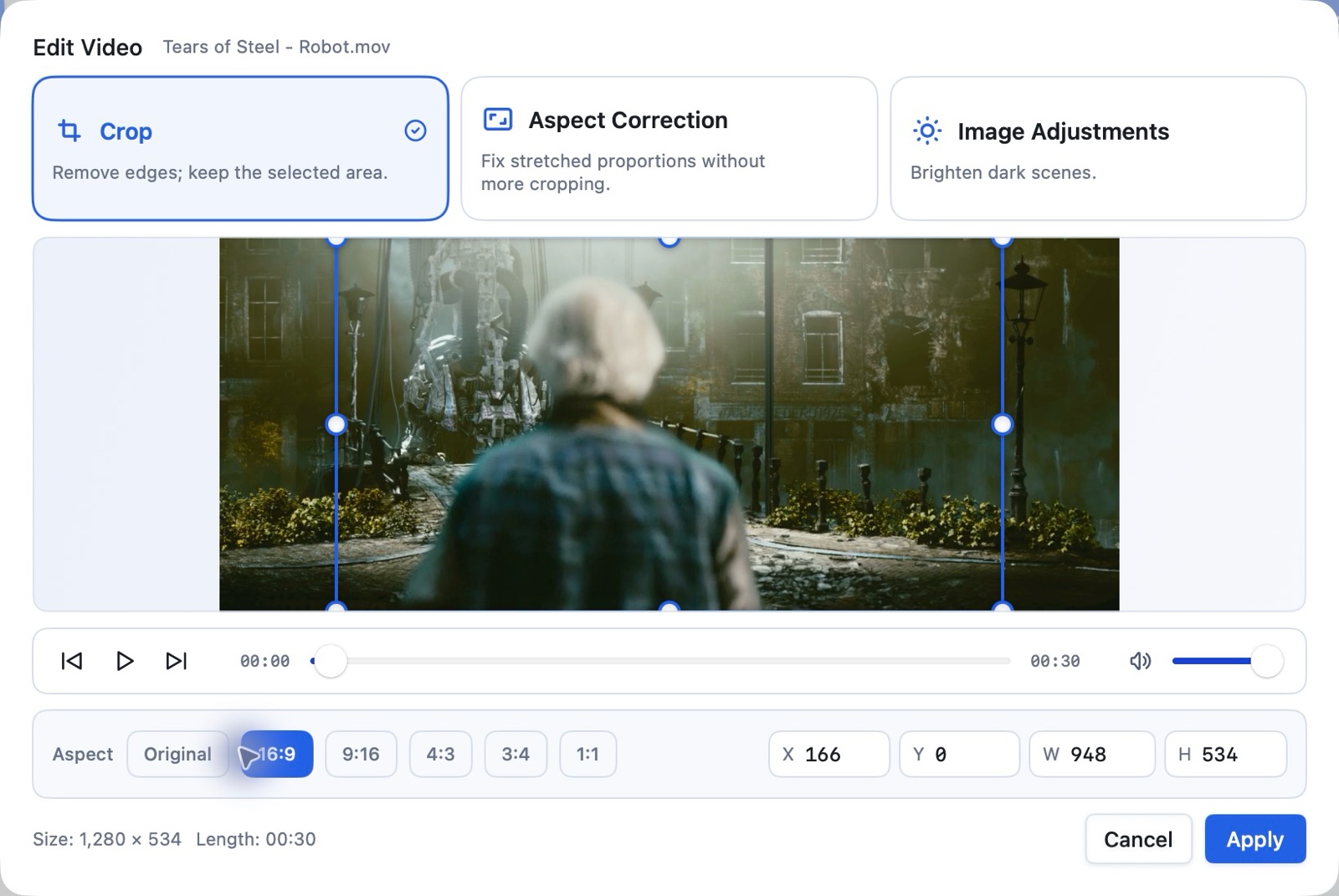
Remove unwanted edges and turn video by 90° or 180°, without stretching the picture.
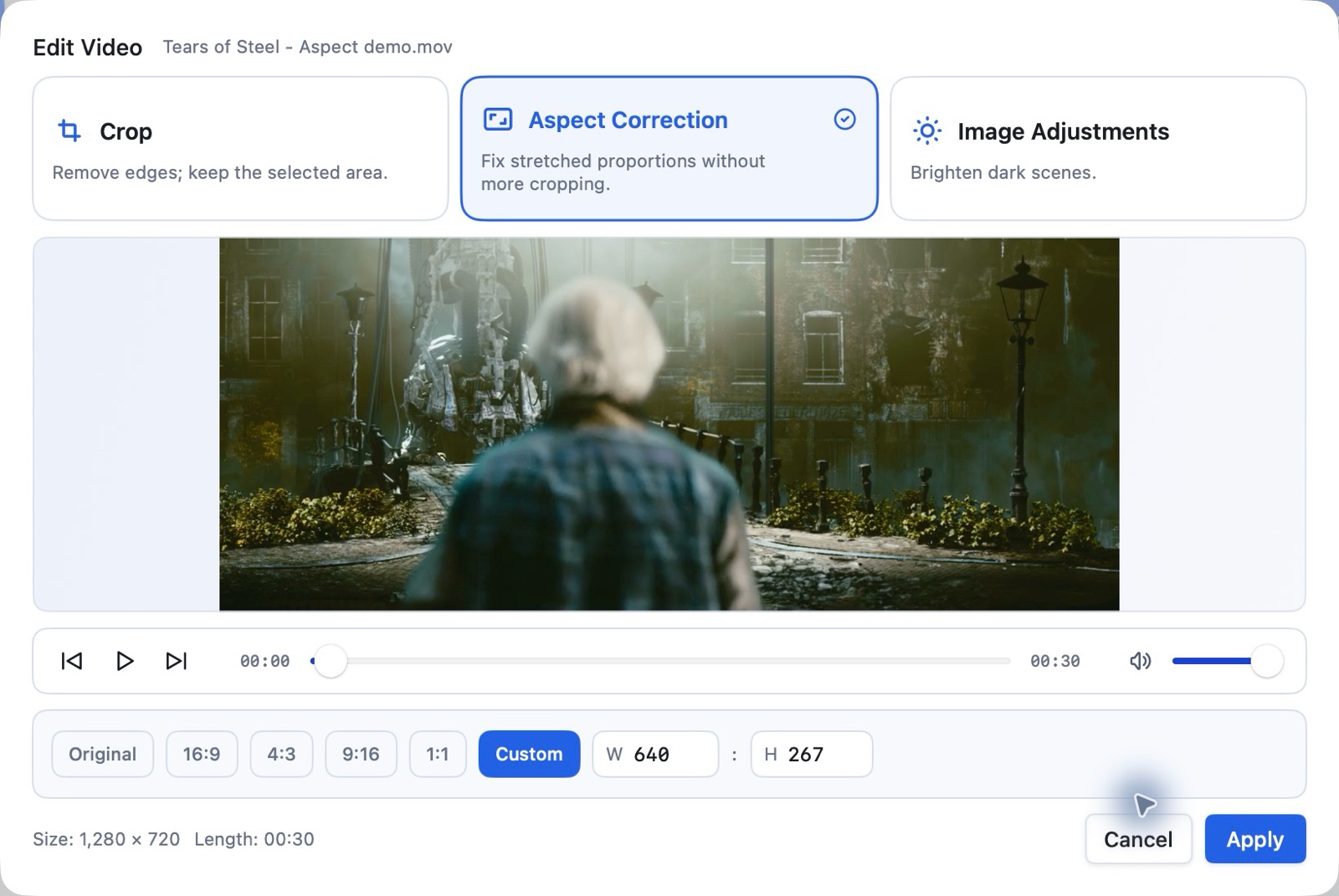
Fix stretched proportions with presets or a custom ratio, with live preview and no extra crop.
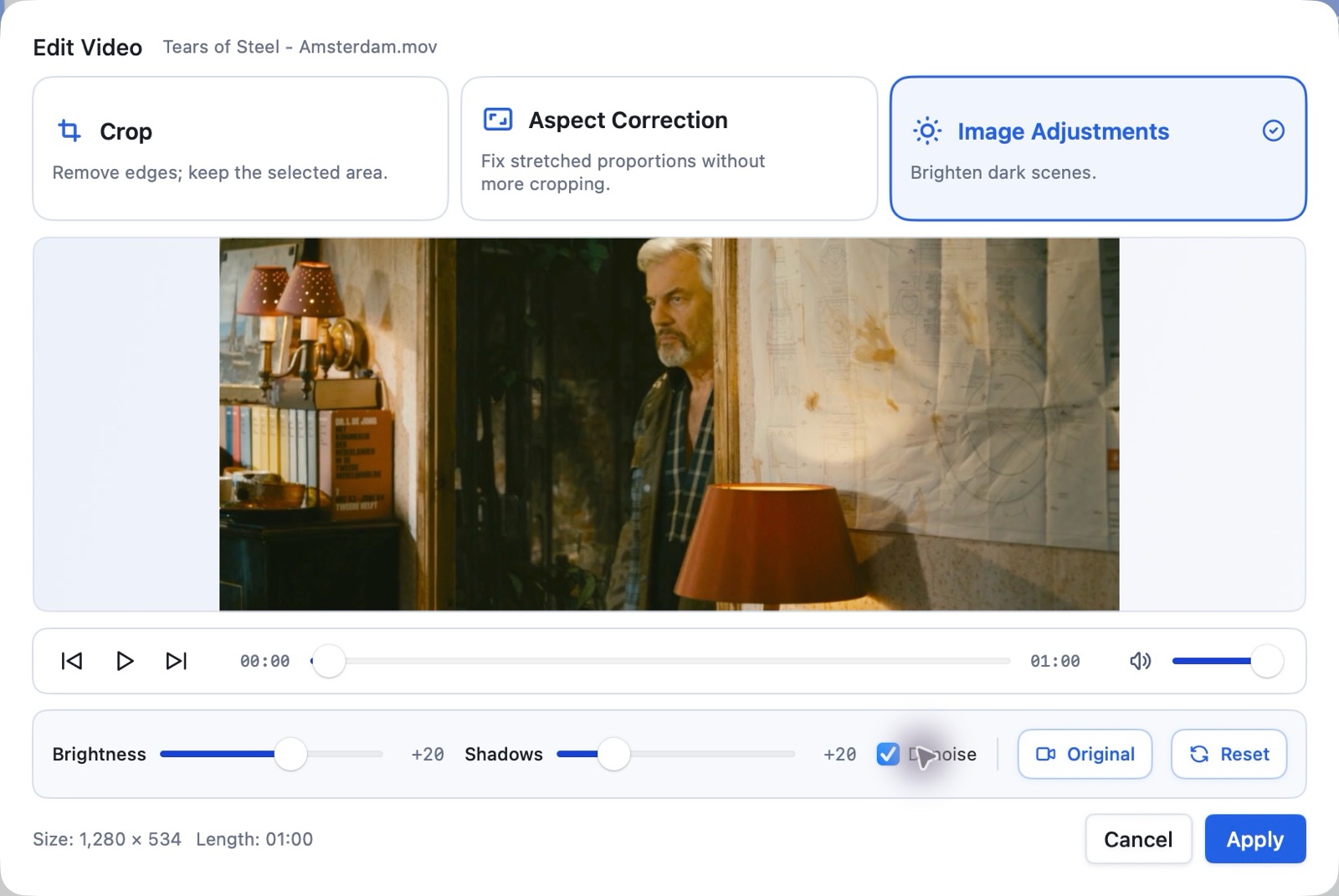
Gently lift dark scenes with a live preview. Add light denoise when needed.
Re-encodes SDR video. Light denoise is optional and may soften fine detail.
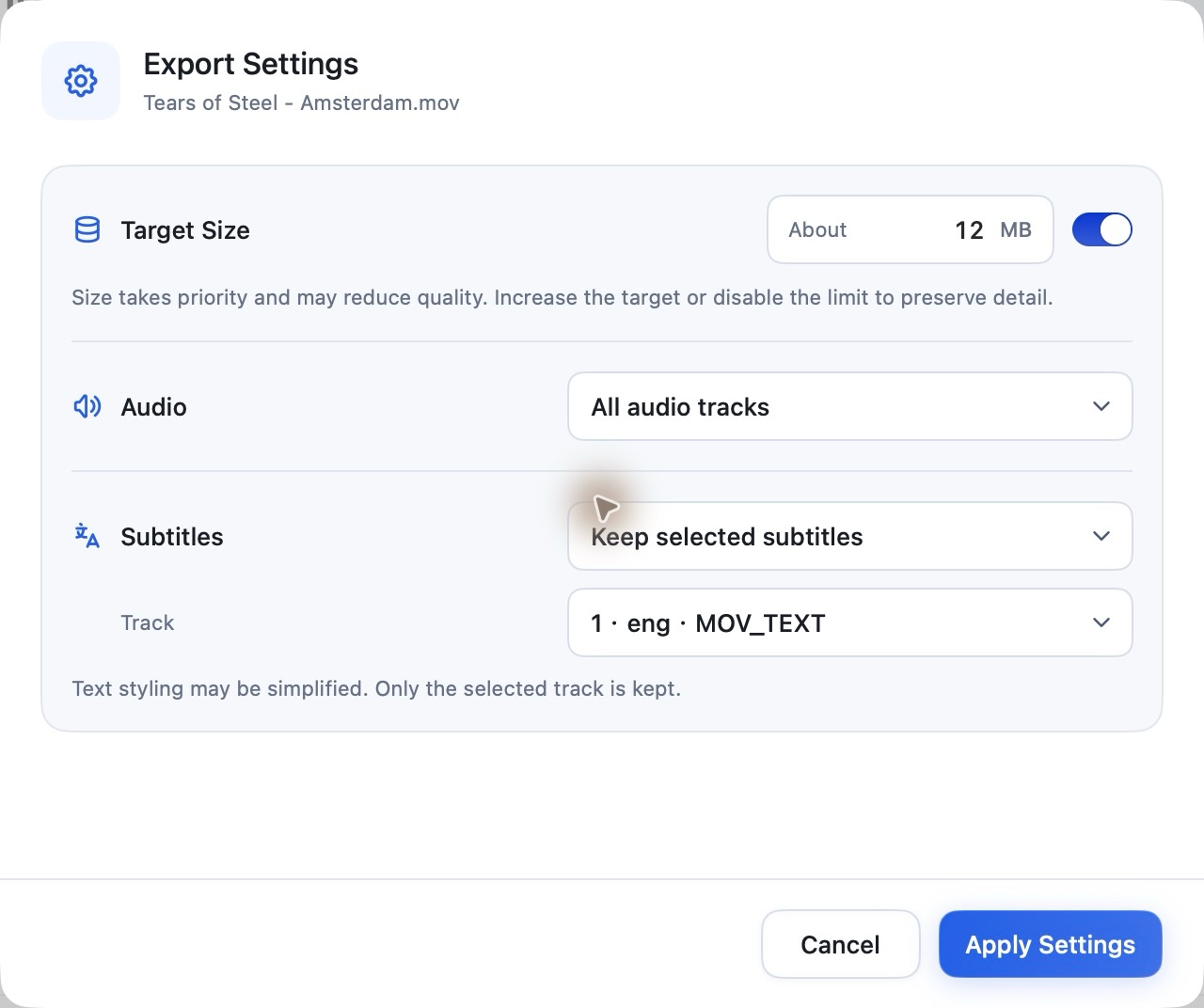
Set an approximate size, choose audio, and keep or burn a text-subtitle track.
All audio kept by default
Target size is an estimate. Compression can reduce quality.
Drop files in, or choose them in Finder.
Choose quality, then adjust the picture and export settings if needed.
Follow the progress, then open your video in Finder.
MP4Flow converts common MOV, MKV, AVI and WMV videos to MP4. Support depends on the codecs in the file and your installed FFmpeg build.
MP4Flow is free and open source. Videos are processed on your Mac, with no account or video uploads required.
Not always. Smart Convert can copy compatible video without re-encoding. Set a target size in Export Settings, or lower the resolution. Size is approximate; re-encoding may reduce quality.
Use macOS 13+ on Apple Silicon or Intel. Drag MP4Flow to Applications, then open Environment Check to set up FFmpeg and ffprobe.
Download the latest version, or build from source.
Free, open source, and right on your Mac.
Choose your chip: Apple menu → About This Mac.
macOS 13+ · Each installer is about 3 MB. FFmpeg and ffprobe installed separately.