 Any2WebP
How to Turn a Video Clip into a WebP or GIF on Mac
Trim an MP4, MOV, or WebM on your Mac, set the frame rate and output dimensions, then export the clip as animated WebP or GIF in Any2WebP.
Apple Silicon · macOS 26 or later
How to do it in Any2WebP
- Open Any2WebP. Choose Help → Check Dependencies and follow the prompts if FFmpeg or ffprobe is missing. Click Animate Video and select an MP4, MOV, or WebM file.
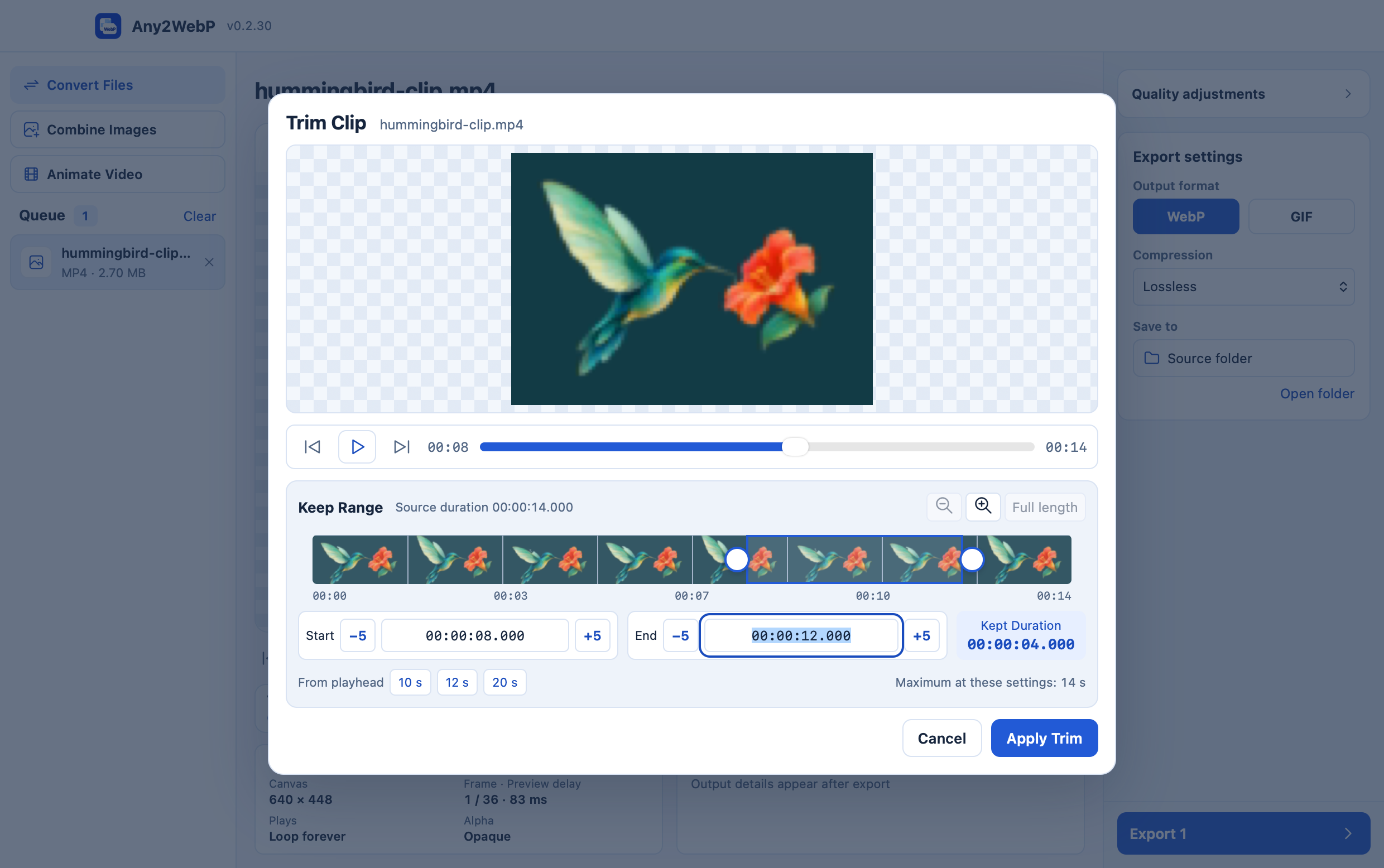
- Click Trim Clip. Drag the start and end handles on the timeline or enter the times, then select Apply Trim. In the main window, set the frame rate and long edge for the animation.
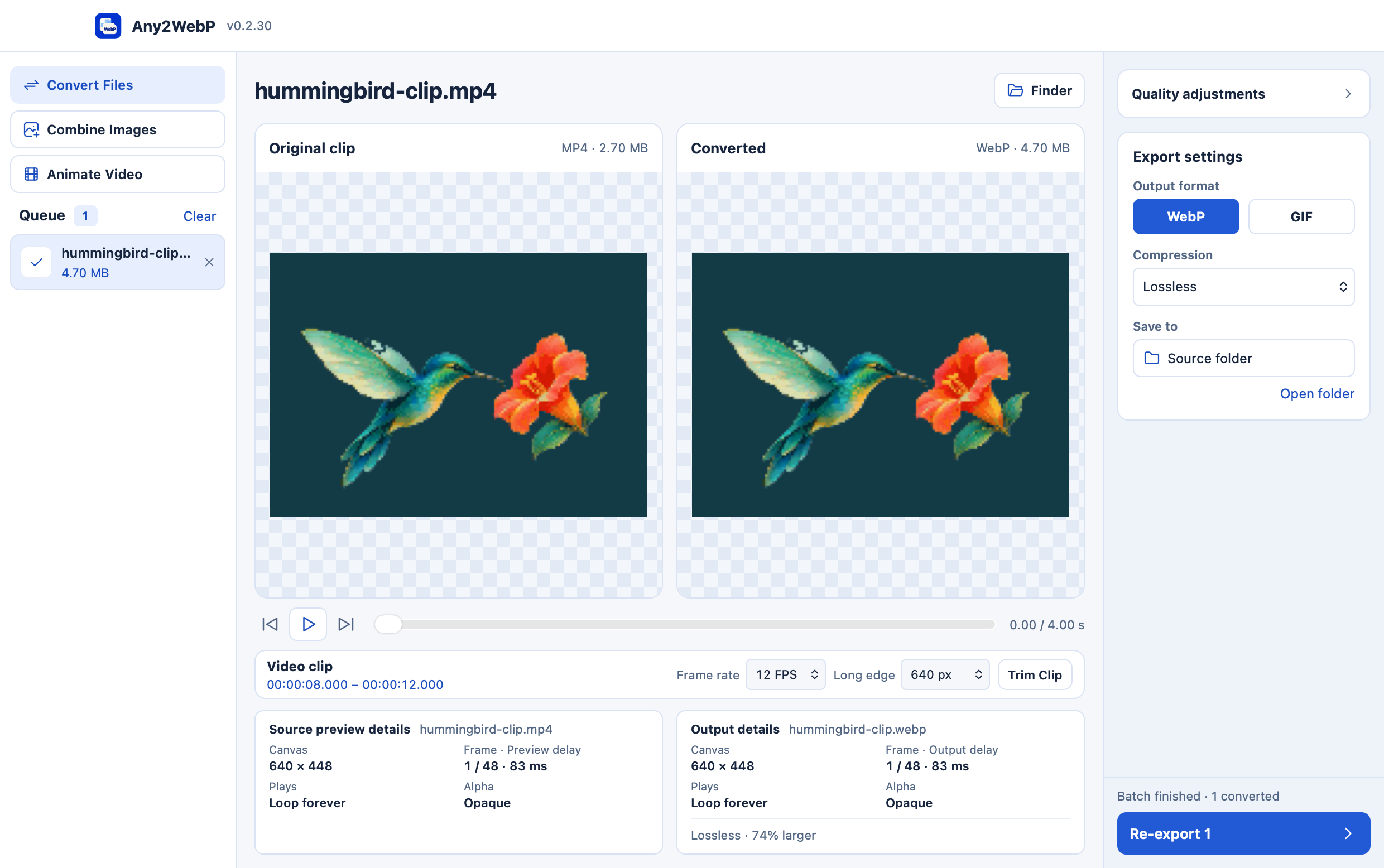
- Choose WebP or GIF in Export settings. Set a target size in KB if you have an upload limit. Export, then compare the selected clip and the output in the synchronized preview. The animation has no audio.
What settings should I start with?
Try a short clip, such as 00:08 to 00:12, at 12 FPS and a 640 px long edge. If the clip exceeds the duration shown in the trim window, shorten the selection or lower the frame rate or long edge. Choose GIF for destinations that require it. WebP supports more colors and partial transparency.