 Any2WebP
How to Compress WebP to a Target File Size on Mac
Batch compress WebP images and animations to a target in KB. Check the actual file size and compare the result with the original on your Mac.
Apple Silicon · macOS 26 or later
How to do it in Any2WebP
- Drag in the WebP files you want to reduce, or add JPG or PNG images if you also want to convert them to WebP.
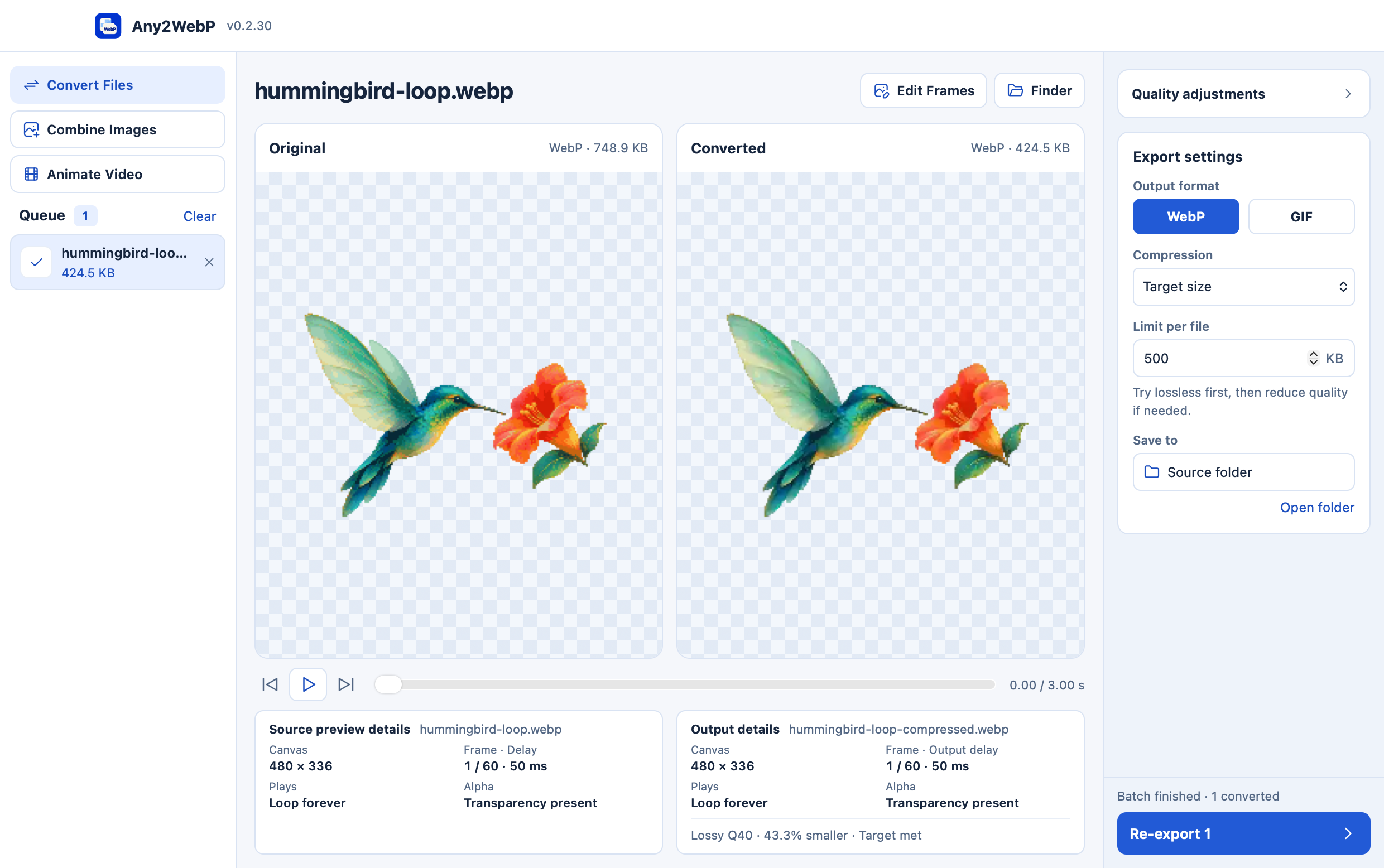
- Choose WebP and Target size. For a 200 KB upload limit, enter 200 as the limit per file. Any2WebP tries lossless compression first and reduces quality if needed.
- Export and check each item's actual size. Compare the original and output at the same point in the animation. If an item shows Over target, review the smallest result saved before uploading.
What if an animation stays over the limit?
A target is a size to aim for. If you still need a smaller file after comparing quality, remove unnecessary frames in Edit Frames. For a video clip, shorten the selection or reduce its frame rate or output dimensions before exporting again. Target size mode also works for GIF, where the app reduces colors as needed.