Mount the drive
Choose Mount Read-Write on the drive’s card. Enable Auto Mount for that drive if you want ezNTFS to mount it on future connections.
Apple Silicon · macOS 14+
Is your NTFS external hard drive read-only on Mac? Mount it with ezNTFS to copy and save files in Finder while keeping its NTFS format. ezNTFS is free and open source.
v0.5.1 · PKG · arm64
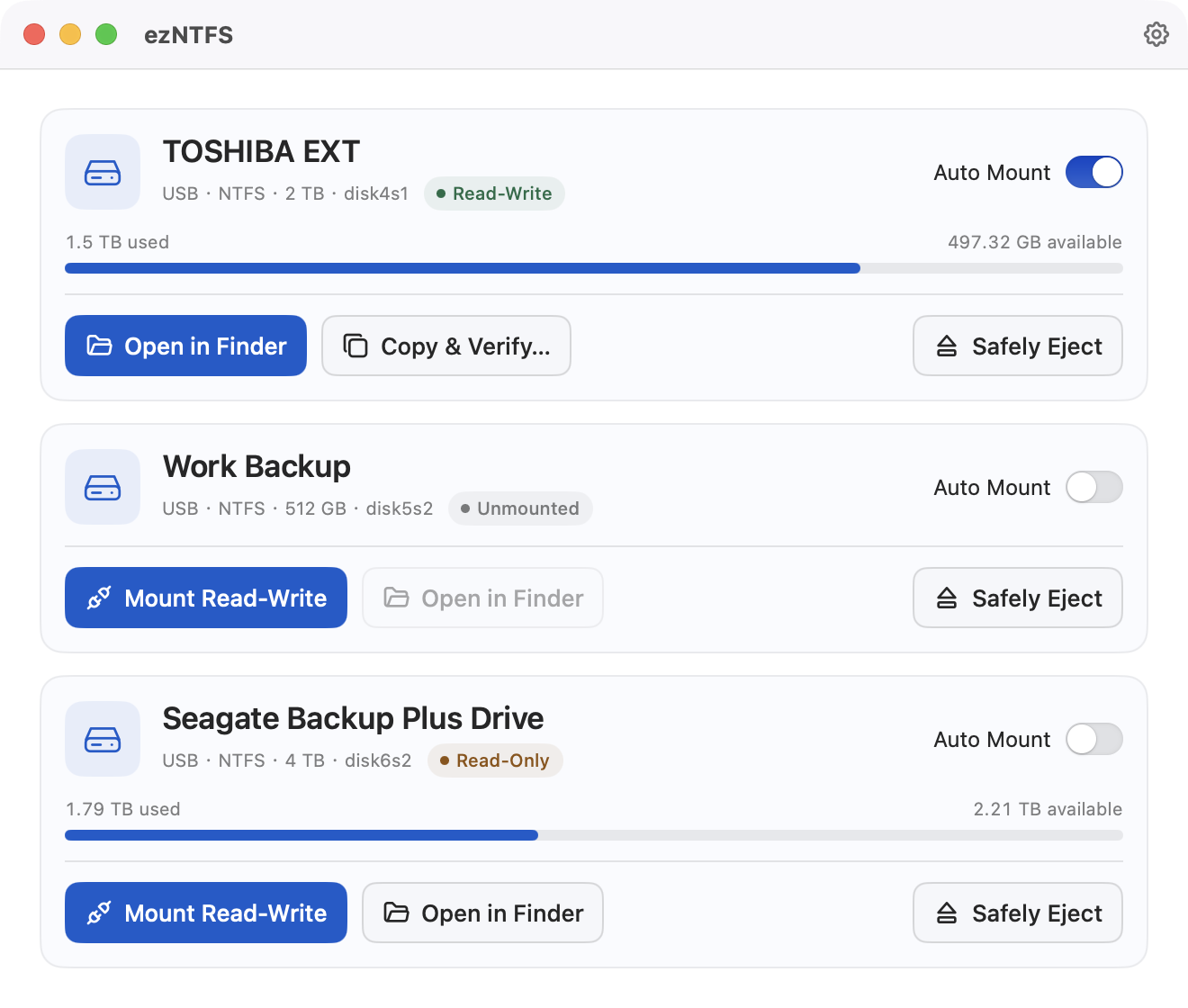
Choose Mount Read-Write on the drive’s card. Enable Auto Mount for that drive if you want ezNTFS to mount it on future connections.
Copy files and create folders on the mounted drive in Finder. For important batches, Copy & Verify reads back each copy and checks its SHA-256 digest.
Close files in use and choose Safely Eject. ezNTFS ejects the physical drive and its volumes so you can disconnect it.
Install macFUSE 5.5.0 once on this Mac. When setup is complete, reopen the ezNTFS installer.
Open the official macFUSE release pagemacOS can usually read NTFS drives but does not provide built-in NTFS write access. In Finder, select the external drive and choose File → Get Info to check its format. If it’s NTFS, mount it with ezNTFS and copy files in Finder once the app shows it is writable.
Yes. Mounting with ezNTFS keeps the existing NTFS format and files. You can use the drive on Windows again after safely ejecting it from your Mac.
Open Help → Check Dependencies in ezNTFS and check that macFUSE, NTFS-3G and the mount service are ready. If the app reports that disk access was denied, follow its instructions to grant the mount service Full Disk Access.
You enable it for each drive you want to mount automatically. A drive without a stable identifier can be mounted manually.
File operations run on your Mac. Check for Updates reads public GitHub release information only when you choose it.